Companies and Settings
You can use the REST API or the web user interface to open and manage company accounts. However, the user interface requires manual work so if the integration will have multiple companies or a complex set-up, API is recommended.
How to open and activate company accounts
- Create company account
- Configure settings for the account
- Authorize the account (Customer authentication process), using one of:
- Finnish signatory check (Finnish companies registered through the Maventa UI)
- Visma Sign authentication process (UI registrations in Sweden, Norway, Denmark, the Netherlands, and API-driven authorisation for companies in Finland, Sweden, Norway, Denmark and the Netherlands)
- Partner’s own customer authentication process
1. Create company account
When registering a new company through the API, different countries have varying levels of support:
| Country | Supported business identifiers | Notes |
|---|---|---|
| Finland (FI) | ORGNR, VAT | UI registration uses the Finnish signatory check; API-driven authorisation supported as before |
| Sweden (SE) | ORGNR, SSN | Customer authentication supported by Visma Sign (personal ID or BankID) |
| Norway (NO) | ORGNR | Customer authentication supported by Visma Sign (BankID) |
| Denmark (DK) | CVR | Customer authentication supported by Visma Sign (personal ID or MitID) |
| Netherlands (NL) | KVK | Customer authentication supported by Visma Sign (iDIN) |
| Estonia (EE) | CC, VAT | Allowed to create but there is no automated authentication process, please contact our support |
| Belgium (BE) | EN | Allowed to create but there is no automated authentication process, please contact our support |
| Germany (DE) | VAT | Allowed to create but there is no automated authentication process, please contact our support |
| Latvia (LV) | VAT | Allowed to create but there is no automated authentication process, please contact our support |
| Italy (IT) | CFI, IVA | Allowed only for specific partners, please contact our support |
| Poland (PL) | VAT | Allowed only for specific partners, please contact our support |
| Iceland (IS) | KTNR (kennitala) | Allowed only for specific partners. Authorised only through the partner’s own customer authentication process. Visma Sign is not available. See e-invoicing in Iceland. |
| Other countries | - | Please contact our support |
FI, SE, NO, DK, NL companies can be registered without any special arrangements. Because our customer authentication process supports these countries.
Creating a company requires a vendor key and a user API key.
You may use an existing user or create a new one with:
To register a new company with basic settings:
In situations where a new user is created, method returns unique company_uuid and user_api_key. If method is called with an existing user, for security reasons only company_uuid is returned.
Existing company
There can be only one company per business id.
If the business id already exists in Maventa you will get an error message when trying to register it again (BID ALREADY TAKEN). Please contact Maventa support (support@maventa.com) regarding the management changes of the already existing account.
In REST API you can check beforehand company’s availability with
When registering a new company account, it gets automatically linked to your vendor. If you take an already existing company account into use, remember to link the company account to your vendor. This is necessary for correct reporting and support handling and also mandatory if you wish to use webhooks. Similarly if a company stops using your vendor, it should be unlinked.
- POST/v1/company/vendors Link vendor API key
- DELETE/v1/company/vendors Unlink vendor API key
2. Configure account settings
When company account has been created, it can be configured by updating company settings and adding new users.
To be able to send, receive and activate services you need to first verify the account by Know Your Customer process.
API methods:
- PATCH /v1/company/settings change company’s settings.
- GET /v1/company/settings view current settings of a company.
- POST /v1/users add new or existing user to a company.
- POST /v1/company/notifications - register webhooks
Keep Active
Keep Active is a feature for companies that rarely generate transactions. To maintain your company account as active even without generating transactions within a year, use the “Keep Active” feature.
As part of our data maintenance efforts, we will disable inactive company accounts, which means accounts with no transactions in the past 13 months. An email alert will be sent to the account after 12 months of inactivity, notifying that the account will be automatically disabled in one month. This provides time for companies to take appropriate action. If there is no activity after 13 months, the account will be disabled.
In REST API you can trigger Keep Active function with
3. Customer authentication process
Customer authentication process is a necessary step to get the company’s account authorized. In other words to verify the company_state. The process ensures that a person with right to represent the company has confirmed and approved the registration for the Maventa service and has accepted the Terms of Service. The process is crucial for preventing potential misuse of the service.
The company’s account cannot be fully used until authentication is completed.
Please note that for Finnish companies, the process also automatically creates a bank network opening request.
Customer authentication options
Customer authentication happens in one of three ways, depending on the company’s country and how the account is opened:
- Finnish signatory check — used for Finnish companies registered through the Maventa UI. The signatory’s signing authority is verified against the Finnish business register, and the signatory signs the Maventa Terms of Service via Visma Sign. The flow is split into two phases: the admin invites the signatory by email, and the signatory completes the signing on their own device.
- Visma Sign authentication process — used for UI registrations in Sweden, Norway, Denmark, and the Netherlands, and for API-driven authorisation of companies in Finland, Sweden, Norway, Denmark and the Netherlands. A signee with the right to represent the company (signing rights or power of attorney) receives an emailed invitation, authenticates strongly via Visma Sign, and signs a document confirming that the company’s account can be authorised.
-
Partner’s own customer authentication process — used by partners who have an approved authentication process of their own. The account is authorised via the API with an identifier in
authorization_method. This is also the authorisation path for companies in the other countries listed above, including Iceland.
If a partner wants to use their own authentication process, Maventa needs to approve it first.
Finnish signatory check
Finnish companies need a signatory with legal signing authority (nimenkirjoitusoikeus) to authorise the company’s account for sending and receiving electronic documents. In practice, the person registering the company in the Maventa UI — usually an accountant, finance-ops contact, or admin — is rarely that authorised signatory. The Finnish signatory check splits registration and signing into two phases so the right person can sign without needing a Maventa account or inheriting the registrant’s session.
How the flow works in the Maventa UI:
- The admin opens the registration wizard for a Finnish company and enters the signatory’s email address. The wizard sends the signatory a personal invitation link, and the admin is free to close the tab.
- The signatory opens the link on their own device, agrees to the privacy statement, enters their Finnish personal identity code (henkilötunnus), and picks their bank.
- Maventa checks the signatory’s signing authority against the Finnish business register before any signature is collected.
- If authority is confirmed, the signatory is redirected to Visma Sign for bank authentication and signs the Maventa Terms of Service.
- After signing, the company’s
company_statemoves to verified (1) automatically. No API status-poll is needed for this flow.
The authority check returns one of three outcomes:
| Outcome | What happens |
|---|---|
| Sole signing rights | The signatory can sign alone. One signature verifies the company. |
| Joint signing rights | The company is legally represented only when two or more named persons sign together (nimenkirjoitusoikeus yhdessä). The wizard reports a partial-authority result and prompts the admin to invite the next signatory; the company is verified once all required signatories have signed. |
| No signing rights | The signatory is not registered as having signing authority. The flow stops before any signature is collected. |
The invitation link is valid for 7 days. Once the signatory opens the link and starts signing, the window narrows to 15 minutes so they complete the signing in one sitting; if the window expires, the admin can resend the invitation.
Visma Sign authentication process (other countries and API-driven)
The authentication takes place within Visma Sign. The signer must be a person who has the right to represent the company (signing rights or power of attorney) — this is a requirement of the authorisation, not just an organisational convention. The signer authenticates strongly with bank credentials, BankID, or mobileID and signs a document where they confirm that the company’s account can be authorised and taken into use.
In UI registrations, the Maventa wizard collects the signer’s email address and Visma Sign emails them the invitation; the signing happens in Visma Sign, not in the Maventa UI. The person registering the company in the Maventa UI does not need to be the same person as the signer — if they are not, they enter the email address of someone who is. The same applies to API-driven authorisation: the API caller supplies the signer’s email and Visma Sign handles the rest.
This path applies to UI registrations in Sweden, Norway, Denmark, and the Netherlands, and to API-driven authorisation of companies in Finland, Sweden, Norway, Denmark and the Netherlands. Companies in other countries are authorised through the partner’s own customer authentication process. For Finnish companies registered through the Maventa UI, the Finnish signatory check is used instead.
Partner’s own customer authentication process
When company’s representative has been already strongly authenticated on the partner’s side the account can be taken in use without any additional signing.
The partner must provide an tracable information in authorization_method per each company to link the authentication process event on their side (e.g. contract number, signing eventID). If needed partner has to be able to show that the authentication has happened.
Please contact Maventa support to get your own authentication process approved.
What is meant by strong authentication
Strong authentication is a process where service provider (partner) verifies the identity of the company’s representative with certainty. It can be implemented e.g. with login codes of online banks, mobileID, bankID, an electronic identity card or passport.
APIs to use
After the company’s account has been created, an API call is used to trigger the authentication process; in other words, a Visma Sign document is sent for signing — see Visma Sign authentication process.
If a partner is using their own customer authentication process, there is still a need to call the authorization endpoint — see Partner’s own customer authentication process.
For Finnish companies registered through the Maventa UI, the registration wizard handles the Finnish signatory check end to end and the API call is not made by the partner.
When the customer authentication is completed the company’s account gets authorized and company_state changes from unverified (-1) to verified (1); after this the account is ready to be used fully.
- Authorize a single company POST /v1/company/authorization
- View company’s authorization status GET /v1/company/authorization
- Authorize multiple companies POST /v1/companies/authorizations
- View company’s authorization status GET /v1/companies/{id}/status
Authorization states
| Company_state | Description |
|---|---|
| verified (1) | Company account is authorized/verified and customer authentication has been completed. Company account can be used normally. |
| unverified (-1) | Company account not authorized/verified, customer authentication required. Account usage is restricted. |
| unknown (0) | Customer authentication and company authorization not needed. Company account has not been verified, but can be used normally. This status is possible for older company accounts. |
NOTE! Sending or receiving of invoices is not allowed if company_state is unverified (-1) and API will return error message “Unauthorized”.
Authorization webhooks
You can use webhooks to get notifications when company’s state changes. See the example “Example for companies authorization”.
You can also register webhook to monitor bank network opening for Finnish companies. The request to open bank network is sent after the authentication is completed. The opening is approved by third party (bank) and it usually takes couple of days.
Visma Sign authentication process in production
The following applies to the Visma Sign authentication path (non-FI UI registrations and API-driven authorisation). For the Finnish signatory check, see the step-by-step flow above.
- The signee needs to be a person who has the right to represent the company (signing rights or power of attorney).
- You can use the
localeparameter to select the language of the PDF document. - The invitation to sign is valid for 7 days. If the signature is not made within this time, a new request must be sent.
- Company’s authorisation status is automatically updated from Visma Sign every 15 minutes.
Visma Sign authentication process in testing and Visma Sign service test credentials
The credentials below are for the Visma Sign authentication path on testing (non-FI UI registrations and API-driven authorisation). For testing the Finnish signatory check on stage, see the stage environment notes below.
In testing, the flow is similar as above but there are no automatic status updates. You need to call the API to get the company’s state updated.
You can complete a Visma Sign authorisation request with these test credentials:
- user ID:
testtest@test.test - password:
xO70MVYD0CXaKcQ2
For BankID you can use Nets test users from https://www.nets.eu/developer/e-ident/eids/Pages/testusers.aspx.
Stage environment for the Finnish signatory check
On production, the Finnish signatory check runs against the real Finnish business register and the real Visma Sign service. On the Maventa stage environment (testing.maventa.com), both are mocked by default so partners and integrators can exercise the entire flow end-to-end without real personal identity codes, real bank authentication, or real signatures. Production never runs in mock mode regardless of any setting — the test identity codes here cannot be used against secure.maventa.com.
You can run through the entire flow on your own: enter your own email as the signatory, open the link from your inbox, and walk through the signing yourself. Because everything is mocked, you can also try all three outcomes (approved, joint-authority, rejected) back to back without any real signatory, real bank, or real Finnish company being involved.
Every signatory-flow page and the admin wizard’s signatory-check views on stage display a visible STAGE MOCK MODE banner so testers know they are not signing for real.
What the admin does
- Opens the registration wizard for a Finnish company.
- Enters the signatory’s email address and sends the invitation.
- Waits for the signatory to complete the signing; the company’s
company_statemoves to verified (1) automatically once the signing finishes. - If the signatory has only joint signing rights, the wizard reports a partial-authority result and prompts the admin to invite the next signatory before verification can complete. See the joint-authority note below.
What the signatory does
- Opens the email link.
- Enters a test henkilötunnus (see the table below).
- Picks any Finnish bank from the list — the choice does not matter on stage.
- On the “Mock Visma Sign” page, clicks the button to complete signing. No real bank authentication runs, so the Nets test users referenced above are not used for this flow.
Test henkilötunnus values
| Henkilötunnus | Outcome | Use for |
|---|---|---|
010191-0031 |
Sole signing rights — approved | Happy path |
010191-0042 + 020292-0132
|
Joint signing rights — both signers required | Joint-authority path |
010191-0053 |
No signing rights — rejected | Rejected path |
Joint-authority path. Some Finnish companies are registered with nimenkirjoitusoikeus yhdessä (joint signing authority), meaning the company can be represented only when two named persons sign together. The mock joint-authority pair simulates this: signing once with 010191-0042 leaves the company in a partial-authority state, and the company is verified only after a second signing with 020292-0132. Use both identity codes, not just one.
Status updates flow through automatically in this UI flow, so the manual GET /v1/companies/{id}/status call described above is not needed. For API-driven Visma Sign testing and for non-Finnish companies, keep using the test credentials in the previous section.
Authenticate multiple company accounts with one go
In cases where a single signee has the right to represent multiple companies, one signing can be used to authenticate all of the company accounts at the same time — for example a housing company or accounting office that has power of attorney for multiple customers. One API call can be used to authorize up to 50 companies. For authentication to work, the companies must be from the same country.
When this option is used the signing invitation contains a list of companies to be authenticated.
This option uses the Visma Sign authentication path and applies to API-driven authorisation. The Finnish signatory check (UI) authorises one Finnish company per session.
Example - Finnish signatory check (UI)
You have started registering a Finnish company in the Maventa UI; at this point the authorisation status is (-1) = unverified. The registration wizard runs the Finnish signatory check — the admin invites the signatory by email, and the signatory completes the signing on their own device.
After the signatory completes the signing, the company’s company_state updates to verified (1) automatically.
Finnish signatory check process
1) The admin opens the registration wizard for a Finnish company, enters the signatory’s email address, and sends the invitation. The wizard confirms the invitation has been sent and the admin can leave the wizard.
2) The signatory receives an email with a personal link. The link is valid for 7 days. No Maventa account is needed.
3) The signatory opens the link, agrees to the privacy statement, enters their personal identity code (henkilötunnus), and picks their bank from the list of supported Finnish banks.
4) Maventa checks the signatory’s signing authority against the Finnish business register.
- Sole signing rights — the signatory continues to Visma Sign for strong authentication and signs the Maventa Terms of Service.
- Joint signing rights — the wizard reports a partial-authority result. The first signatory completes their part of the signing, and the admin is prompted to invite the next signatory. The company is verified once all required signatories have signed.
- No signing rights — the flow stops. No signature is collected and the company stays unverified. The admin can resend the invitation to a different signatory.
5) Once the signatory completes the signing in Visma Sign, the company’s company_state updates automatically to verified (1). No manual status poll is needed.
Example - Visma Sign authentication process (other countries and API-driven)
You have created the company account; at this point the authorisation status is (-1) = unverified. This example covers the Visma Sign authentication path — used for UI registrations in Sweden, Norway, Denmark, and the Netherlands, and for API-driven authorisation of companies in Finland, Sweden, Norway, Denmark and the Netherlands. For Finnish companies registered through the Maventa UI, see the Finnish signatory check example above.
To initiate the Visma Sign process, call POST /v1/companies/authorizations.
After the Visma Sign process has been completed, the company account is set to verified state (1) and is ready to be used.
Visma Sign process
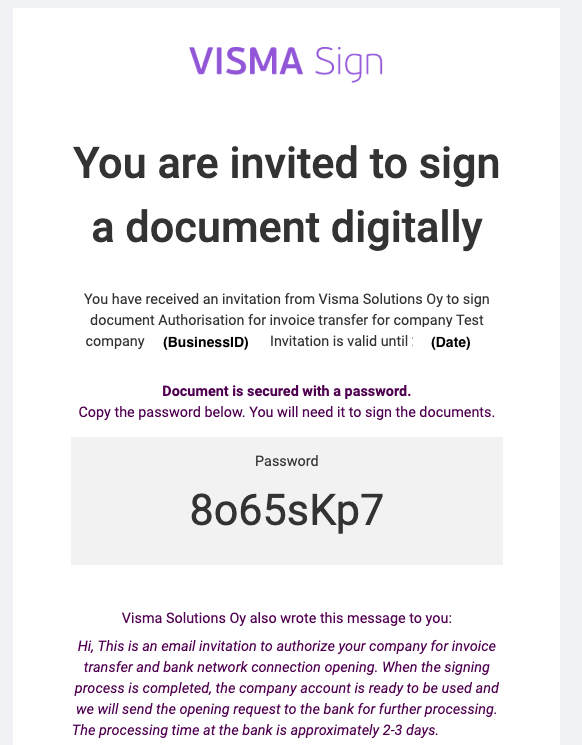
1) Request to sign is sent to an email given in the API call
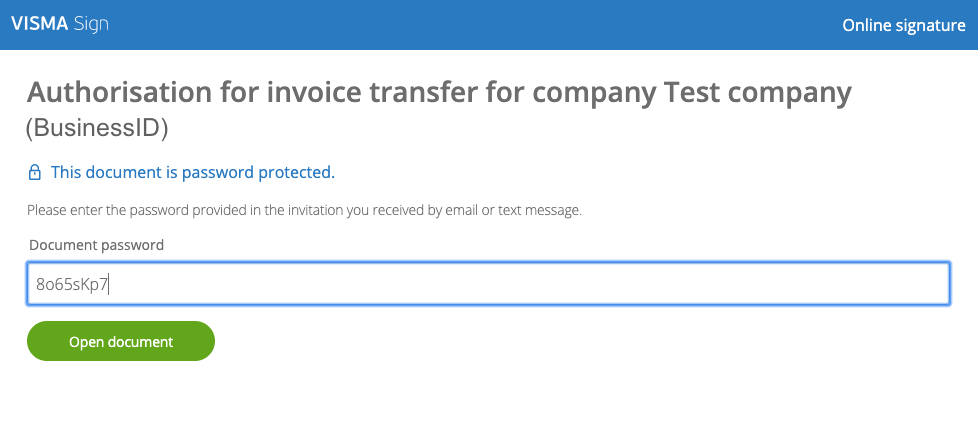
2) Signee logs into Visma Sign service with a password given in the email
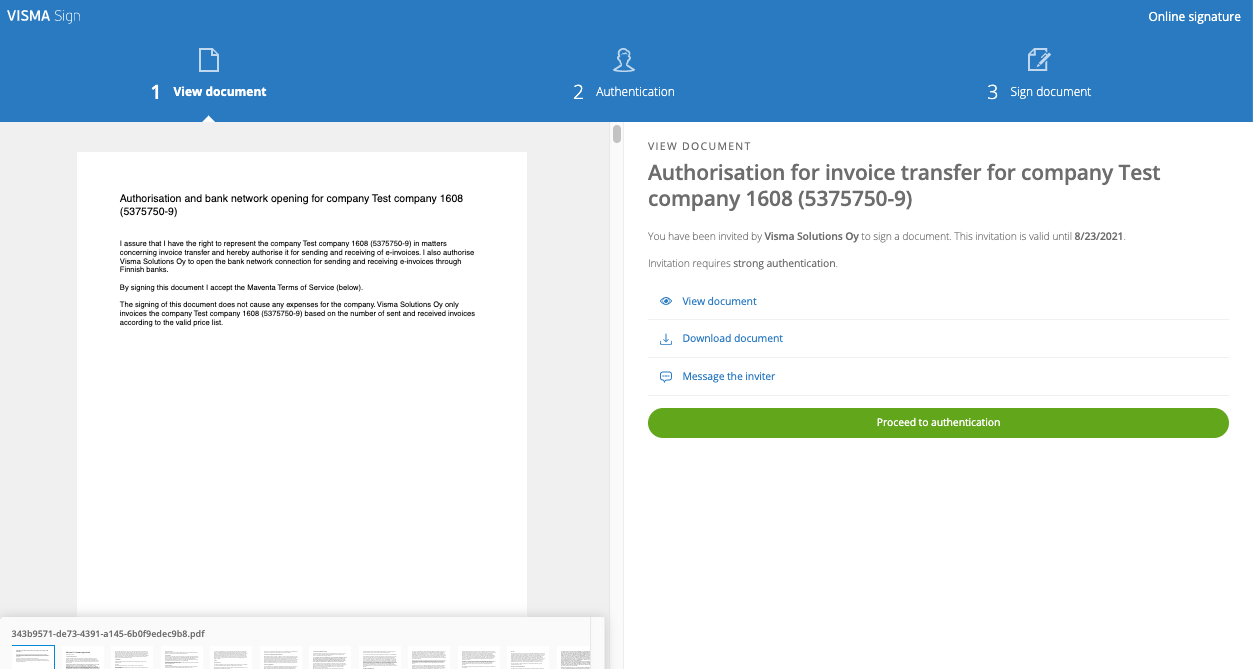
3) Signee sees a document that contains statement of authorisation and accepting attached Terms of Service
-
Text in the document:
I assure that I have the right to represent (signing rights or power of attorney) the company “CompanyName (BID)” and hereby authorise it for sending and receiving of electronic documents. By signing this document I accept the Terms of Service (below). The signing of this document does not cause any expenses for the company. Visma Solutions Oy only invoices the company “CompanyName” based on the number of sent and received documents and activated services according to the valid price list. -
For Finnish companies the document also mentions the bank network opening
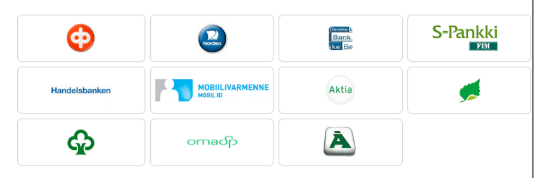
4) Signee authenticates strongly and signs the document electronically in Visma Sign service.
- After signee has selected their preferred authentication method and performed the authentication they can see a button Sign document.
5) Signing is ready
Example - Partner’s own customer authentication process
After company account creation account’s authorization status is -1 = unverified.
To authorize the account call one of these:
- POST /v1/company/authorization endpoint
- POST /v1/companies/authorizations endpoint
In the API call you must provide an identifier in authorization_method per each company to link to authorisation event (e.g. contract number, signing eventID). After the API call, account is set automatically to verified state 1 and is ready to be used. No need to sign any documents in Visma Sign service.
The request body must follow this structure:
{
  "auth_email": "test.person@maventa.com",
  "company_ids": ["UUID"],
  "locale": "EN",
  "options": "{\"authorization_method\": \"how+identifier linking auth event\"}"
}| Parameter | Description |
|---|---|
auth_email |
Required. Any valid email address. No Visma Sign email is sent when authorising with a trusted key. |
company_ids |
UUID or UUIDs of the companies to authorise. |
locale |
Required. Use EN when authorising with a trusted key. |
options |
Required. A stringified JSON object containing authorization_method. The value of authorization_method is stored as the log entry for the authorisation event — use a traceable identifier, for example "{\"authorization_method\": \"Partner+contractID\"}" or "{\"authorization_method\": \"OnniSign+123\"}". |
The options parameter must be a stringified JSON object with the exact structure shown above. Any other value is rejected with the error Options parameter format is invalid.
Company account creation over UI
New companies with a new user can be created for:
- Testing at https://testing.maventa.com/registrations/
- Production at https://secure.maventa.com/registrations/
If you need to create a new company for an existing user, login to Maventa UI first.
Before the account can be used it needs to be authorised. When the user logs into the account for the first time, they go through a first-time wizard where they add information about the company and configure basic settings. The last step of the wizard is the company’s customer authentication — the signing must be done by a person who has the right to represent the company (signing rights or power of attorney), regardless of country. The person opening the wizard is not always that same person, and the flow accommodates both cases:
- Finnish companies use the Finnish signatory check: the person in the wizard enters the signatory’s email, and the signatory — who is the person with signing rights — completes the signing on their own device.
- Companies in Sweden, Norway, Denmark, and the Netherlands use the Visma Sign authentication process: the person in the wizard provides the signer’s email address, and Visma Sign emails the invitation to the signer who then authenticates and signs. The signer can be the same person who is using the wizard if they have signing rights, or a different person if they do not.
- The language of the PDF document is defined based on the company country.
- The language of the invitation email is defined based on the language that is set for the user interface at the time the authentication request is sent. For example, when the UI is in Finnish, the email is sent in Finnish.
Partner accounts
In Maventa there are two type of accounts; Company accounts and Partner accounts. Company account is the default account type. Partner accounts are used by the integration partners.
The key difference between a Partner and a Company account is that Partner accounts have extra identifier, vendor_api_key, which is used to link API calls to the partner company. The vendor api key is used for billing and reporting purposes. One Partner company can have multiple vendor API keys, for example one for each country they have customers in.
Partners don’t need to worry about controlling the account type, all accounts registered to Maventa are first created as Company account and changed to Partner account if and when needed by Maventa.
Several integrations for one company
A company can use more than one software integration at the same time — for example, an invoicing system that sends invoices and an accounting system that reads them back for bookkeeping. Each integration connects to the same company account:
- Own vendor API key — Each software uses its own vendor API key, so API calls, billing, and support cases are linked to the right partner. Link each vendor API key to the company with POST /v1/company/vendors.
- Own API user — Create a separate API user for each integration and add it to the company. Each integration then has its own user API key, which can be removed without affecting the others. See users.
Keep in mind that the integrations share one company account:
- Settings are shared — Receiving settings, Peppol registrations, and other company settings apply to all integrations. A change made by one integration affects the others.
-
Invoice lists are shared —
GET /v1/invoicesreturns all sent and received invoices of the company, regardless of which integration created or fetched them. Store the invoice IDs your integration handles. - Webhooks are shared — Notifications are scoped to the company, so every subscriber sees events caused by the other integrations. See webhooks.
- Receiving is billed per partner — If integrations from two different partners both fetch the same received invoice, each partner is billed for it. Decide which integration receives invoices, or pass received invoices from one system to the other. See billing.
Data retention
Maventa retains invoice data for the current and previous year, roughly two years. This applies to both sent and received invoices. Maventa is not a long-term invoice archive — store invoices in your own system if you need them for longer, for example to meet bookkeeping requirements.
FAQ
I am testing Visma Sign in test environment, the signing has been done but the status is not updating. What is wrong?
There is a difference in status updating between stage and production. See Visma Sign in testing